A customer opens a product gallery and hears “Blue ceramic mug” four times. The photos show different things: the handle, the inside, the base, and the mug next to a hand for scale. The descriptions never tell them that. Repeating the product title in every alt field technically fills a box, but it leaves out the details that make the gallery useful.
Good Shopify alt text starts with a simple question: what does this image tell a shopper that the rest of the page doesn’t? The answer can be different for the same photo on a product page, in a collection card, or inside a button.
Write for the job each image does
The W3C’s alt text decision tree distinguishes informative images, decorative images, and images that provide the meaning of a link or button. That distinction gives you a better starting point than a blanket rule to fill every field.
- For an informative product photo, describe what the customer needs from that particular view. A close-up of a bag’s zipper should mention the zipper rather than repeat the whole product title.
- For a purely decorative image, use an empty alt attribute in the rendered HTML. A blank field in the admin is only sufficient if the theme actually renders alt="".
- For an image-only control, make sure it has an accessible name that describes the action or destination. A thumbnail button might be named “Show inside view.” If the button already has that name, repeating it on the thumbnail adds noise.
Describe the visible details shoppers compare
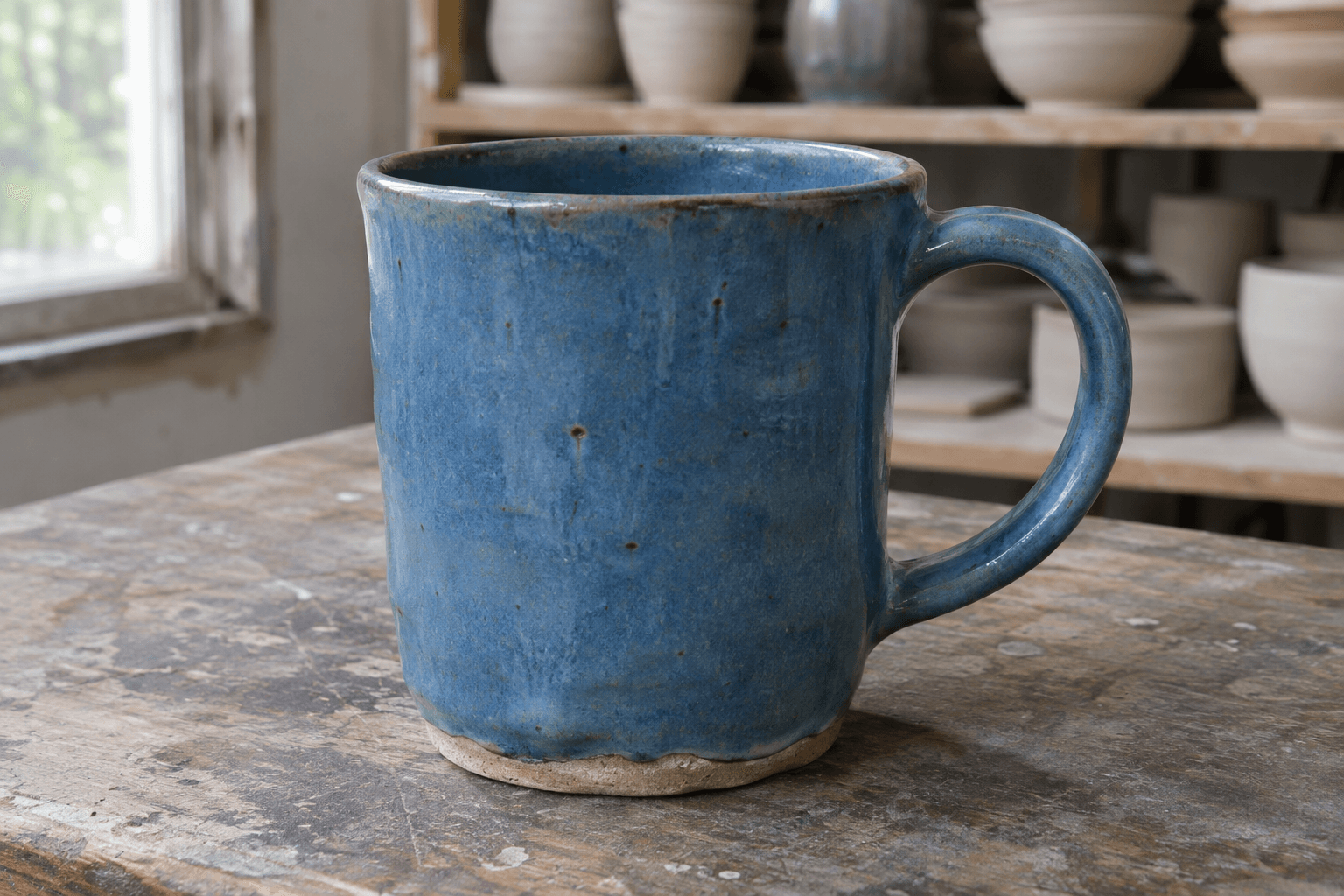
Blue glazed ceramic mug on a worn counter, viewed from the side with its round handle on the right. Fictional AI-generated editorial image for an alt text example.
Example image: a blue ceramic mug shown from the side. This generated editorial image illustrates the writing exercise.
Try “Blue ceramic mug in side view, with a round handle on the right.” That identifies the item and the point of the photo. A separate top-down shot could say “Top view of the blue mug, showing the glazed interior,” if the glaze is visible. When the gallery shows different colours, name the correct colour on each relevant image.
Avoid adding specifications you can’t see or verify. A photo can show a speckled finish; it can’t prove the mug is dishwasher safe or holds 350 mL. Put confirmed dimensions, materials and care instructions in the product description, where shoppers can find them without listening to the whole gallery.
Google’s image guidance recommends useful descriptions in context and advises against stuffing alt attributes with keywords. A string like “best blue coffee mug ceramic cup online” gives shoppers less useful information than a short description of the actual photo.
Set the text in Shopify and check what the theme renders
For a product image, go to Products, open the product, select a media item and use Add alt text. Shopify’s product media instructions recommend 125 characters or fewer, with 512 as the maximum. Think of 125 as an editing target, rather than a requirement to pad or cut a sentence mechanically.
For a banner or another image managed through a theme section, start in the theme editor. Product media and section images can travel through different templates. A custom gallery can ignore saved media text, substitute a filename, or repeat the product title on every slide.
To check, open the storefront preview, inspect the image element, and look at its rendered alt attribute. Then try the gallery with a screen reader and the thumbnail controls with a keyboard. The image description and the control name do different jobs: one describes what is shown, the other tells shoppers what they can do.
Start with one product and use it as your pattern
- Pick a product with multiple views and variants. List what each image contributes: colour, shape, interior, texture, fit or scale.
- Review suggested text against the actual photo. Check especially for swapped colours, invented materials, and identical descriptions on different images.
- Preview the collection card, the product gallery and the mobile layout. If a card already has the product name inside the same link, check whether the thumbnail adds information before giving it a second name.
- Once the pattern works, fix the busiest products first. When you replace a photo, review its alt text in the same update.
The useful test is whether someone can tell the gallery views apart without seeing them. If they can distinguish the side view from the close-up and find the right colour, the text is doing its job.
For related storefront work, see my Baby Blossom Shopify theme project. If your theme drops product image descriptions or your gallery is hard to navigate, I can help trace the issue from the media settings to the rendered page.