An update finishes, the homepage opens, and everything looks normal. Later, someone discovers that the enquiry form no longer sends, or a customer cannot select a delivery option. The update succeeded; the business task did not.
That is why I would test the work people actually do on a website before calling an update complete. A staging site gives you a separate place to do that. Here is a practical workflow for a WordPress business site, with extra checks for WooCommerce and booking systems.
What is a WordPress staging site?
A staging site is a separate working copy of your website. You use it to try updates and investigate problems before making the same changes on the live site. Visitors continue using the live version while you work.
Your hosting provider may offer a staging tool, or you may use a suitable plugin or a separate installation. Check what the tool copies and what its push-to-live action replaces. A button labelled “sync” is not enough information to plan a release.
Staging is useful for finding problems, but it cannot prove that production will behave identically. Server settings, caching, connected services, and newer live data can all differ.
Start with a backup you can actually restore
The WordPress backup handbook explains that a typical full recovery needs both the files and the database. Downloading the theme folder alone will not preserve your orders, page content, or plugin settings.
Before an update, I would check when the backup completed, which installation it belongs to, and how to restore it if the WordPress dashboard becomes unavailable. A restore rehearsal on a separate copy is a useful way to find missing pieces.
WordPress also recommends backing up before updating in its update instructions. Keep a short note of the starting WordPress, theme, plugin, and PHP versions. If something changes unexpectedly, you have a reference rather than a guess.
Set up the copy before using it
Cloning the database can also copy email settings, API credentials, customer records, and scheduled tasks. Treat the new copy as a separate environment that needs configuration.
- Restrict access to the staging site. Keep it out of public navigation and search discovery; an indexing setting alone is not access control.
- Use test customers and remove or mask personal data that the testing does not require.
- Route test emails to an inbox you control, and check how the actual SMTP service handles them.
- Replace live payment credentials with the provider’s test configuration and verify the environment before submitting anything.
- Review outgoing CRM, shipping, WhatsApp, and other API connections. Disable them or point them at test destinations unless they are part of a controlled test.
My rule for a cloned site would be simple: before running a customer journey, know where every message and external request will go.
Write a small checklist around customer tasks
A checklist should describe an outcome you can observe. “Check the form” is vague. “Submit an enquiry, find the saved entry, and confirm the notification arrives in the test inbox” gives you something concrete to verify.
- For a service website: open a service page on a phone, submit its enquiry form, check required-field errors, and confirm the enquiry reaches its intended destination.
- For a booking website: choose a date and slot, change the quantity, check availability rules, complete a test booking, and confirm the admin record contains the same details.
- For a store: choose a product variant, add it to the cart, apply an eligible coupon, change the delivery address, and complete a sandbox checkout.
- For a member area: sign in as an ordinary member and confirm that private pages remain unavailable to a signed-out visitor.
Save the expected totals, messages, and resulting records before updating. This makes comparison easier than trying to remember how the old version behaved.
Run the updates and follow the complete journey
Read the release notes for the components you are changing, especially when an update mentions compatibility or a database migration. Choose a manageable group of changes and record it. For tightly related components, follow their documented compatibility requirements.
After the update, repeat the same checklist as a visitor and as an administrator. Use a signed-out browser as well as your normal admin session. Check a real phone where practical, particularly for menus, date pickers, and checkout fields.
If a problem appears, narrow it down on staging. WooCommerce’s conflict-testing guide recommends a staging copy for testing plugin and theme conflicts without disrupting the live store. Record the failing steps and test a specific hypothesis instead of changing several unrelated settings at once.
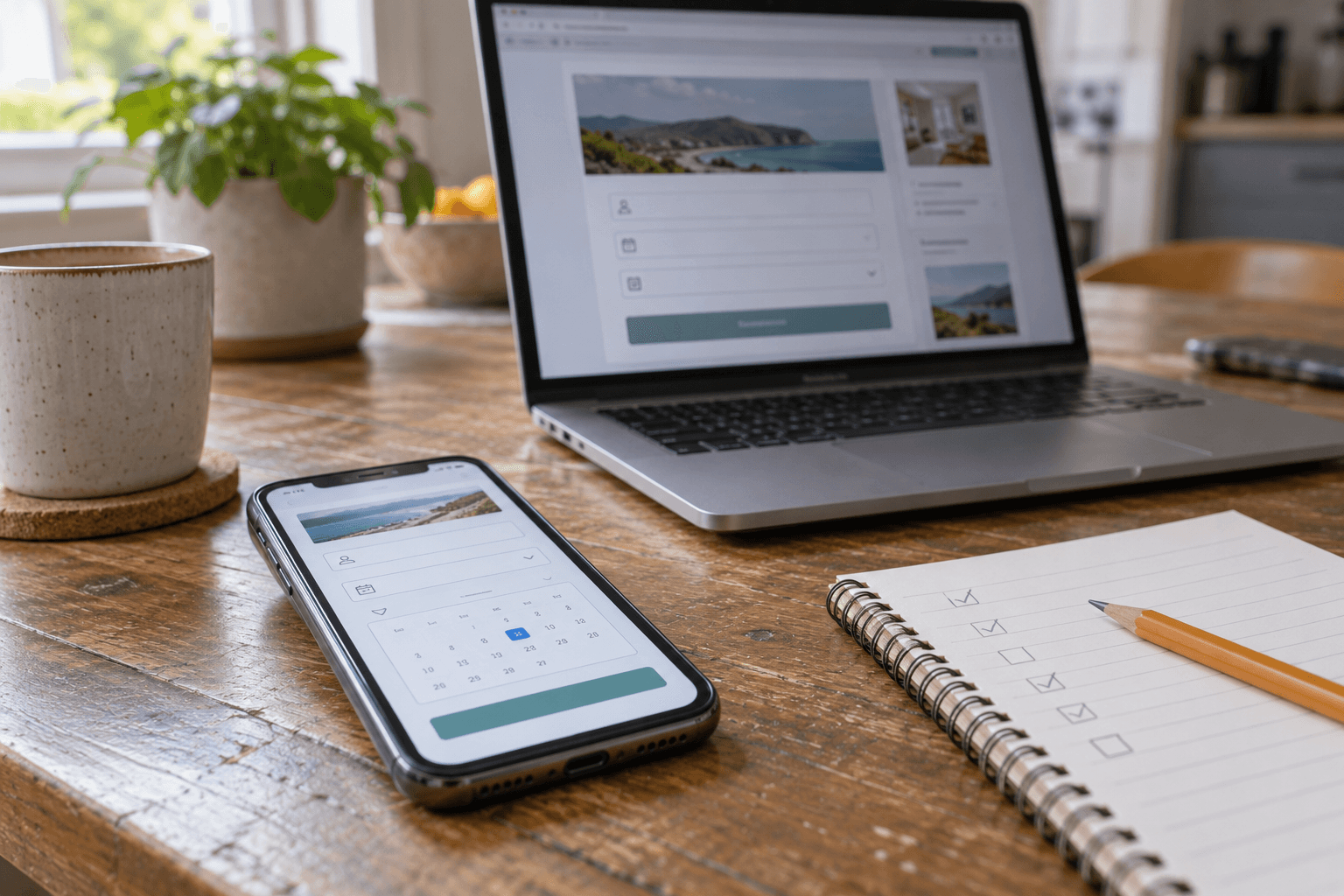
AI-generated illustrative photograph of a smartphone and laptop displaying generic booking forms beside a handwritten checklist in soft daylight. Represents testing a booking journey across devices; not an actual client screenshot.
Illustrative image: checking a booking form across a phone and laptop. Use your own site’s actual fields and expected results for testing.
For WooCommerce, check what happens after checkout
A payment success screen is only one part of the order journey. Check the resulting order status, totals, selected options, stock changes, and any messages or fulfilment requests that should follow.
WooCommerce’s testing orders documentation notes that test orders can still trigger emails and appear in analytics. Other extensions may not distinguish them from real orders, so payment test mode does not automatically isolate every integration.
For a hypothetical ticketing store, I would also check whether a test booking changes slot availability and whether cancelling it restores capacity according to the business rules. That example is a proposed test, not a claim about a particular client’s maintenance history.
Move the tested changes without replacing newer live data
Suppose you copy a shop on Monday, test an update on Tuesday, and push the old staging database live on Wednesday. Orders received in the meantime may disappear from the website’s records.
The WordPress.com staging sync guide explicitly warns that database synchronization can overwrite newer orders, product changes, and customer information. Its interface is specific to WordPress.com; other hosts and plugins have their own sync behaviour.
For routine updates, I would normally repeat the tested update process on production using a fresh backup and an agreed maintenance window, rather than replace the whole live database. For a redesign, plan which files, settings, and content must move. Page-builder layouts may live in the database, so copying theme files alone may not transfer them.
Write down the release steps and recovery steps together. Restoring an older database also affects records created since that backup, so a busy store needs a plan that accounts for those newer transactions.
Finish with a short live check
Once the changes are live, clear the relevant caches and repeat the essential visitor checks. Confirm that live payment and messaging settings are correct, staging access restrictions have not moved across, and the public site remains indexable where intended.
Keep the update note brief: what changed, what passed, what needs attention, and where the recovery point is. A clear handover helps the site owner understand what was verified.
For a related example of a WordPress site with a booking journey, see my Jump World project. Its booking and session features show why a useful test needs to go beyond the homepage.
If your website depends on custom forms, bookings, or WooCommerce changes, you can contact me through my portfolio to discuss a maintenance workflow around those features.
Official references
WooCommerce: testing for plugin and theme conflicts
WordPress.com: syncing staging and production
Documentation checked on 22 October 2026. Follow the instructions for your own hosting service and installed extensions. The workflow suggestions above are my proposed approach; the images are generated illustrations.